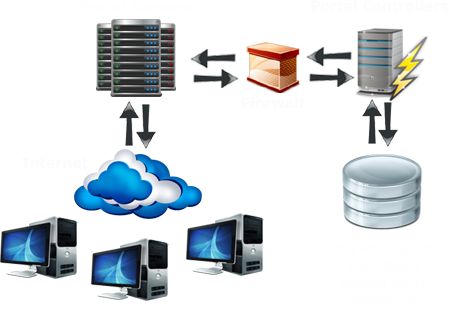
A Portal Controller is a special type of DB Precision login that validates and process all requests made by your customers' portal users. In order for your portal to be running properly, at least one controller must be active on your network at all times.
To run a controller, you simply need to open DB Precision and log in as a user that has been indicated as being a controller.
Portal Controllers are designed to simultaneously run in parallel with other controllers on your network. They continuously communicate with each other in order to maximize efficiency of process handling.
There is no limit to the number of controllers that can run on a network. Their number can be increased or decreased on a daily basis depending upon actual or expected portal activity. This provides PensionSoft customers a scalable solution as their portal needs increase.
The following guidelines may be used when deciding how many controllers you should run at any given time:
- Ongoing Loads: it is recommended that one portal controller be running for every 15,000 portal logins. Fewer controllers can result in occasional portal processing delays (as requests then get queued).
- User ID/Password Mailings: if User IDs and passwords are being sent for a new client using regular mail, then there is generally no need to purchase additional listeners for this (beyond those described above). However, if this login information is instead being provided electronically, then you should have one controller for every 400 logins sent per every 2 hours. To avoid the need for additional controllers, a mailing could be staggered so that no more than 400 User IDs and passwords are transmitted every 2 hours.
It should be noted that one advantage of running more than one controller is that doing so helps to minimize the risk of any portal downtime. If a network only has one controller and that controller becomes temporarily unavailable (due to a server restart for example), then the portal will become unavailable to portal users during that restart time.
To add additional controllers to your network, follow these steps:
- Install DB Precision: run setup64.msi (or setup32.msi for 32-bit installations) provided to you by PensionSoft. Please make sure that you use the appropriate install program (32-bit or 64-bit) based upon which version of Windows is installed on the client machine.
- Create Controller Login: each controller should have its own unique login (user ID and password). To do this, add a user for each controller, give it a unique User ID, and then check the box, Portal Controller (found on the Standard Rights screen).
- Contact PensionSoft: contact PensionSoft so that we may then increase the number of controllers that are allowed to be running on your network.
- Start Controllers: log in to each new controller to start them for processing.
While each controller is effectively running as a service, you will need to use a task scheduler or other product (AlwaysUp by Core Technologies for example) to make sure that DB Precision will restart on operating system reboot.
In the event that the portal controllers on your network all become unresponsive and a portal user then tries to log in, the portal can be configured so that one or more network administrators will then be notified via text or email of the possible outage.
To configure the portal to do this, follow these steps:
- Open Portal Settings: select System - System Settings - Portal within DB Precision.
- Add Network Administrators: press the Add button to add one or more Network Administrators.
- Indicate Communication Preferences: for each Network Administrator, provide email information and or mobile phone information to be used for communicating possible outage information.