In order for this website to work properly, you first need to turn off the popup blocker for this site. Here are the instructions to disable the popup blocker for this site when using Microsoft Edge:
Quick Method
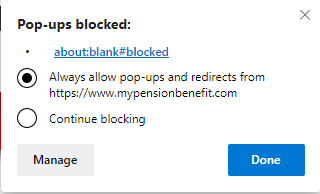
1) The following circled icon will show in the address bar. Press this icon.
2) Choose the option to always allow popups, and then press the Done button.
3) Press the OK button at the bottom right of this screen to confirm that you have properly disabled the popup blocker (you may need to press this twice).
Long Method
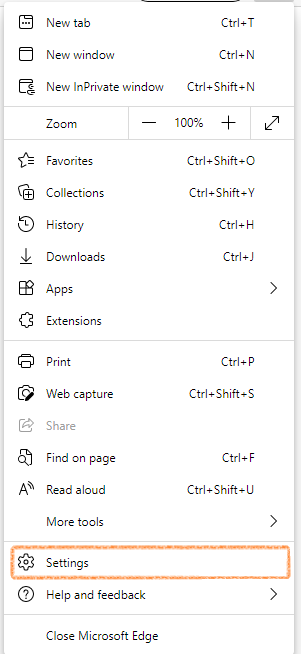
1) Press the Settings and more button (three dots in the top right of the browser and then choose Settings.
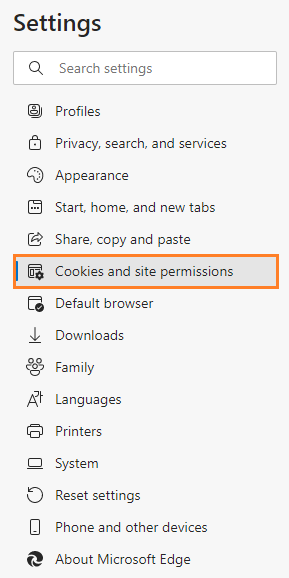
2) Choose Cookies and site permissions under the Settings menu.
3) Choose Pop-ups and redirects on the right.
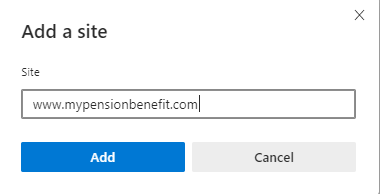
4) Press the Add button next to Allow, type "https://www.mypensionbenefit.com", and then press the Add button.
5) Press the OK button at the bottom right of this screen to confirm that you have properly disabled the popup blocker (you may need to press this twice).