In order for this website to work properly, you first need to turn off the popup blocker for this site. Here are the instructions to disable the popup blocker for this site when using Firefox:
Quick Method
The following bar should appear if popups have been blocked for the first time on this site. If so, press the Options button and then choose to allow popups and then press the Ok button at the bottom right of this screen to confirm that you have properly disabled the popup blocker.

Long Method
If the above bar did not appear, use the following instructions to allow popups for this site:
-
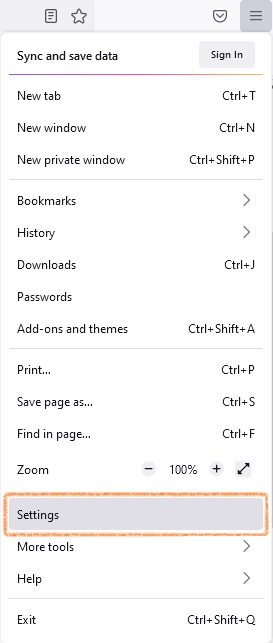
1) Press the Open Application Menu in the top right and then select Settings.
-
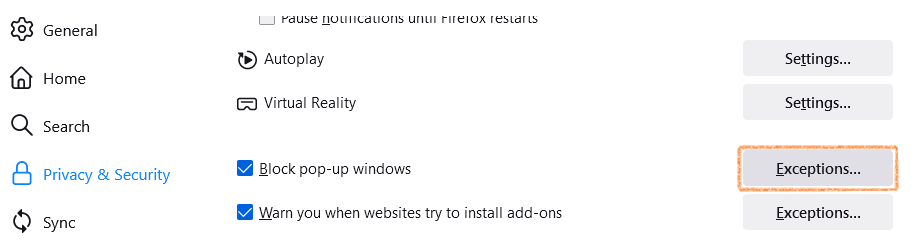
2) On the Privacy & Security tab of the Settings screen, scroll down to Permissions and press the Exceptions... button next to the "Block pop-up windows" check box.
-
3) This opens the Allowed Websites - Popups screen
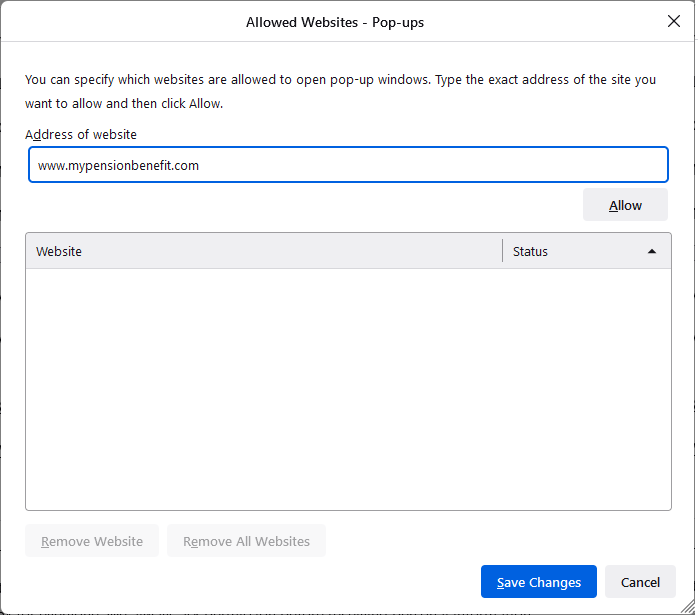
- In "Address of website" box type https://www.mypensionbenefit.com
- Click the Allow button. The website https://www.mypensionbenefit.com should appear under Website with an "Allow" Status.
- Click the Save Changes button and then close the Options tab in Firefox.
- Press the OK button at the bottom right of this screen to confirm that you have properly disabled the popup blocker (you may need to press this twice).
PensionSoft Corporation | 860.540.3690 | support@pensionsoft.com
