AlwaysUp is a third-party application that can be licensed and then used to ensure that DB Precision will always be running for purposes of powering the Internet Portal. Below is an overview of setup and usage on the Internet Controller.
Alternatively, to keep DB Precision running on the Internet Controller Server, you can either use a batch file and Windows Task Scheduler (click here for instructions), or a Windows PowerShell script, a batch file, and Windows Task Scheduler (click here for instructions).
Installation of AlwaysUp
Use this link to navigate to the website for AlwaysUp.
Purchase a license for AlwaysUp. To manage the web portal, one license per Internet Controller is necessary.
Download AlwaysUp, running the standard installation, accepting the license agreement, and completing the setup process.
Configuring AlwaysUp to run DB Precision
Create Windows User for Controller: make sure the Windows User is not a Service Account User and has licensed access to Microsoft Office (Word and Excel). This is most easily done by logging in to the account an then opening each, making sure that you can open a document for both Word and Excel.
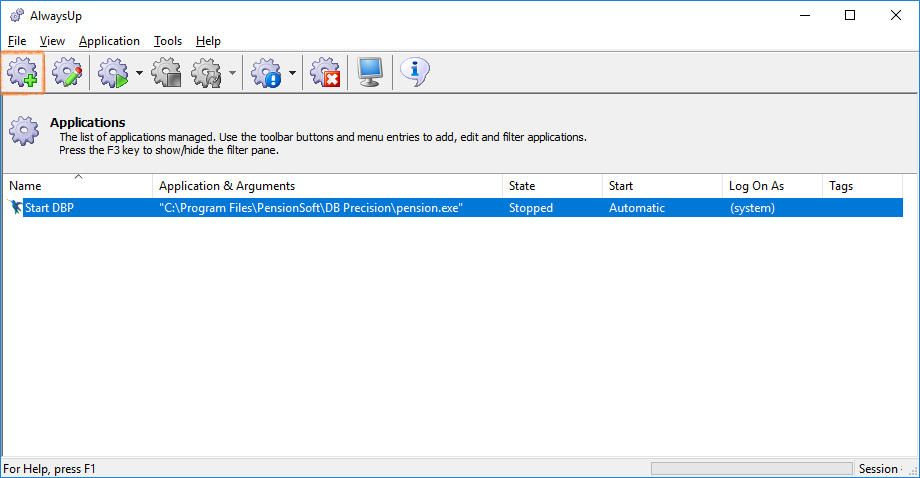
Add A New Application: select the top left gear with a green plus, or use the shortcut CTRL + A.
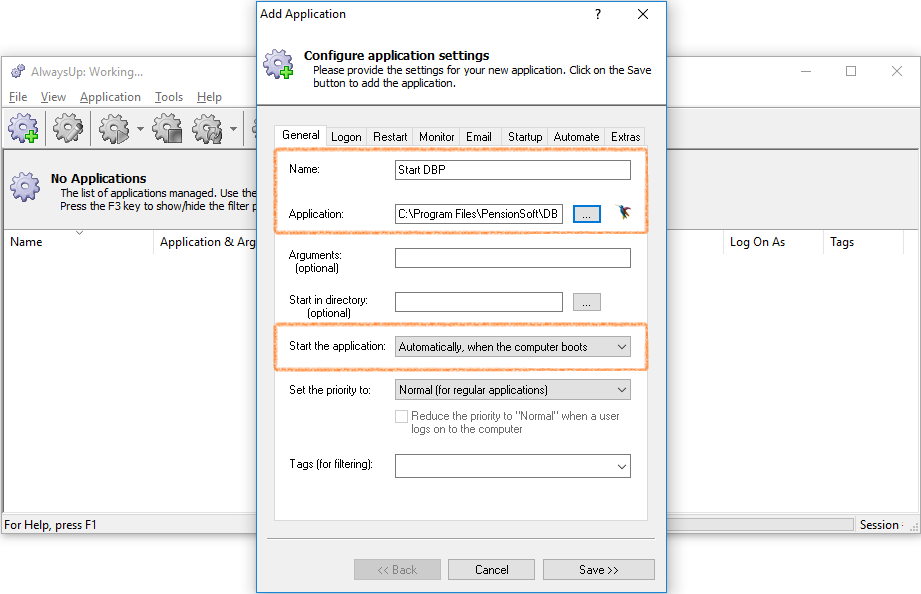
Configure Application Settings: complete the necessary information, giving the program a name (recommended something along the lines of "Start DBP") and selecting that the application starts "Automatically, when the computer boots" if not selected by default. For application, choose the button next to the textbox and navigate to where DB Precision is stored on your computer, and select the application titled "pension.exe". Your result should be C:\Program Files\PensionSoft\DB Precision\pension.exe unless DB Precision is stored in a different location.
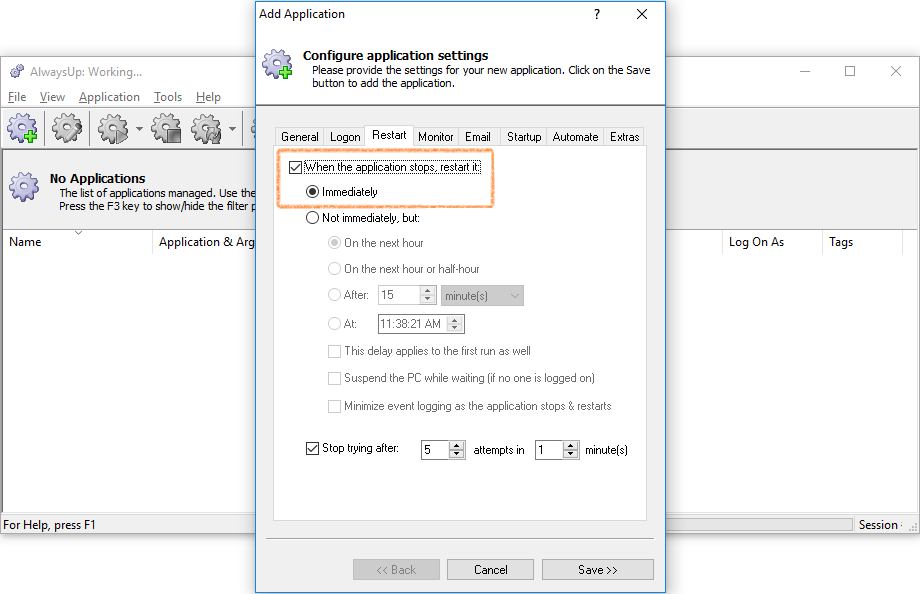
Other Settings: select the tab titled "Restart" to continue configuring AlwaysUp. Ensure that the first checkbox, "When the application stops, restart it" is checked, with the radio button titled "Immediately" selected.
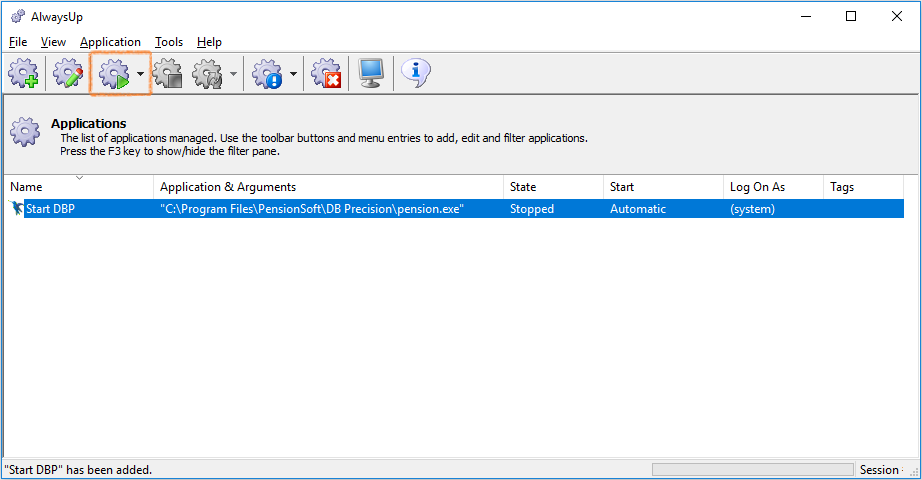
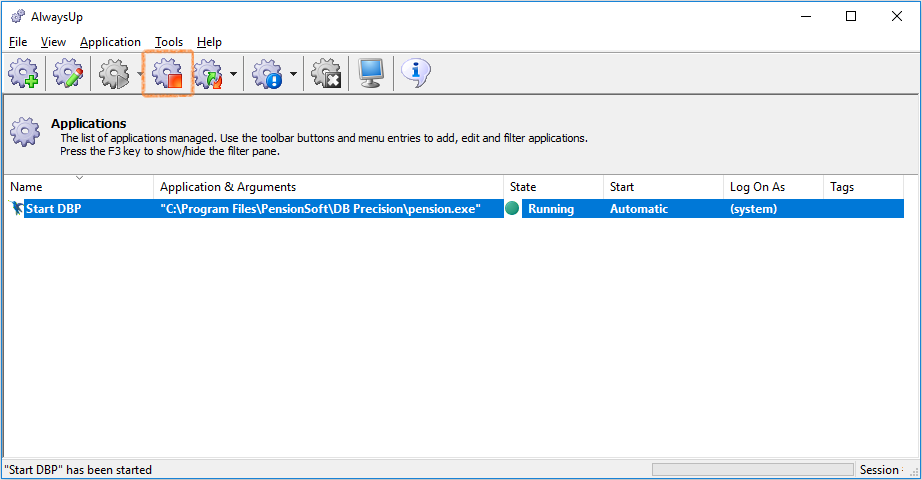
Starting The Application: once setup is complete, start using AlwaysUp by left clicking the row containing the application you created. Once the row is highlighted blue to show your selection, click the start button in the top left, designated by a gear with a green triangle. The "State" column should change from "Stopped" to "Running" with a green circle.
DB Precision updates
With each new DB Precision release, AlwaysUp will need to be temporarily stopped to allow the installation of DB Precision to be updated. To do this, please do the following:
Stop the Program: left click to select your running program and then select the stop button in the top left, shown by a gear icon with a red square.
Update DB Precision: update DB Precision by copying the files indicated in the release notes or by running an updated setup file.
Restart AlwaysUp: left click the program's row so it is highlighted blue to signify your selection. Then, click the start button in the top left, designated by a gear with a green triangle. The "State" column should change from "Stopped" to "Running" with a green circle.
Drive mapping
Note: The user launched with AlwaysUp will not have drive mappings specified unless this is externally configured for the Active Directory user referenced in AlwaysUp.To avoid needing to separately configure drive mappings for this user, we recommend that you specify drive mappings within DB Precision.
To do this, open the network tab of System Settings, System - System Settings - Network and map any drives that might be used for Internet portal calculations.