The DB Precision Heartbeat Monitor (DBPHBM) is a Windows Service that manages Internet Controller activity to ensure that each Internet Controller stays properly running at all times including upon application failure or after server reboot.
Unlike other tools/methods for this (including using AlwaysUp, batch files, and Windows PowerShell scripts) all of which test to see whether the main DB Precision executable is running, DBPHBM monitors what is called the Internet Controller's heartbeat.
The heartbeat is a check in by the controller to the database server every second and DBPHBM continuously checks for this heartbeat. This test gives a clearer picture of whether the controller is responsive as the prior solutions would not handle situations where the main executable stopped responding but remained in memory.
One requirement for using the Heartbeat monitor is that it requires that the
Windows Server be set up exclusively for Internet Controllers to run and should not be used on any server that will be used by users that require interactive desktop sessions of DB Precision. This is because that while Word can be accessed on other user sessions, to get DB Precision to open Microsoft Word in Session 0, the configuration for Word must be changed in a way that then prevents DB Precision from begin able to open Microsoft Word in an active session.
While DBPHBM runs as a Windows Service on each Internet Controller and can be found on the Window's Services screen for each controller server, all configuration including starting and stopping this service can be managed inside DB Precision on that server.
A dedicated Windows User/Service account under DB Precision is run
must first be set up in advance of completing the DBPHBM setup. See the Service User Configuration topic below for additional information.
Note: DBPHBM requires that Word 2019 or higher be installed. If you are running an earlier version, you will need to upgrade to this version or higher on the Internet Controller server prior to installation. Note: Once this user has been set up, to configure DBPHBM, you must first launch DB Precision on each Internet Controller Server as a Windows Administrator and then open this screen.To run DB Precision as an administrator, press the shift key on your keyboard and then right-click the DB Precision icon on the server's desktop.
If you have indicated a path on this screen to log DBPHBM activity (Heartbeat Log Folder described below), you will be able to review this log (stored in a text file) of all DBPHBM activity. When DBPHBM launches DB Precision, it will run in Windows Session 0 which is reserved for Services and is invisible to users.
While you cannot see the DB Precision application window when launched using the Heartbeat Monitor, you can watch its Output window activity in real-time on this Heartbeat Monitor screen as well as on the License Administration screen by pressing the
Activity button.
Note: This requires that an Output Detail folder be specified for your network (see System - System Settings - Portal) and that the Internet Controller Service User have full control/write access for that folder (specified in Windows File Explorer). The Internet Controller will create additional text log files (one for each controller and day) in this folder.
If there is any portal activity that should not be accessible by certain users on your network, make sure to restrict access in Windows Security to this folder.
- Activity Monitor: This monitor will let you know if DBPHBM is running by showing the heartbeat. If it is not running, the monitor will show as flatline. Additional information such as controller activity and start time will show to the right of this monitor.
- Start/Stop Button: If you are running DBP as a Windows Administrator, this button will appear enabled and allow you to start or stop the DBPHBM service. Pressing this button starts the service. Note however that there will be a 10-second initial delay between the time that the service is started and when DBP will actually launch.
- Log Button: Press this button to open and view the DBPHBM log file.
- Activity: If you have specified a path for Internet Controllers to log their activity (configured on the System Settings screen), you can press this button to get a real-time view of the Internet Controller.Note: If this path is on a network drive or share that is accessible by other users, then this detailed Internet Controller activity will be viewable from servers other than the Internet Controller server by users with network access to that shared folder.
- DB Precision Application Path: Space to provide the path of the main DB Precision executable (usually this will be 'C:\Program Files\PensionSoft\DB Precision\pension.exe').
- Restart Interval: Enter the number of seconds of no heartbeat after which DBPHBM should restart DB Precision (default is 240 or 4 minutes but this can be shortened to ensure shorter outages). This should be conservatively set equal to longest time that you expect any task or calculation to take to process for any sponsor on the portal.
- Controller User ID: Select the Internet Controller User ID that should be used for running DB Precision as an Internet Controller on this server.
- Controller Password: Specify the password of the selected Internet Controller user.
- Launch Method: Indicates how DBPHBM should start DB Precision when running as a Windows Service:
1) Isolated application: DBPHBM will launch DB Precision without creation of a user desktop. This is the cleanest and preferred method unless doing so results in Microsoft Word being unable to be opened. Note: When running using this method, on the Service Log On tab, "This account" must be selected including the log in credentials specified for the Heartbeat Service user below. 2) Using desktop profile: DBPHBM will launch DB Precision within the context of a user profile whereby it will first create a user profile and desktop and then launch DB Precision within that desktop profile. Note: When this option is selected Local System account must be selected on the Log On tab of the Service.
- Heartbeat Service User - User Name: Specify the Windows Active directory user name of the user under which the DB Precision application should run. If there is a domain name, enter as DOMAIN\USER. Note: Before launching the Heartbeat Monitor, make sure that both Microsoft Word and Excel open for this user without any user interaction such as Microsoft license activation or other feature messages.
- Heartbeat Service User - User Password: This must be valid in order to start DBPHBM.
- Heartbeat Log: Space to provide the path for the DBPHBM log file (text format). Note: This folder must be for a local drive on the Internet Controller server that the service account has full access to ("C:\PensionSoftLog" for example).
- Removal Checkbox: Check this box and press Ok if you choose to stop this service and remove it from the server.
The Windows Active Directory user that is being used as the Heartbeat Service User must be configured as follows. Note: If you are configuring this user for the first time, you should restart the machine after completing these steps before configuring DBPHBM in DBP.
- User Default Folder: Every DB Precision user has a default folder that is defined for that user in DB Precision. Make sure that a user default folder has been defined for the DB Precision Internet Controller User, and that the Heartbeat Service Active Directory User has 'full' control of this folder. It should be local folder such as C:\Temp.
- Administrator User: In order to ensure proper functioning of the Internet Controller the Heartbeat Service User must be set to be a Local Administrator Account on the Internet Controller server. If a user is a domain administrator but not a local administrator, you will need to add the user to the domain administrator group. To do that, follow the instructions on the topic Local Administrator Configuration below.
-
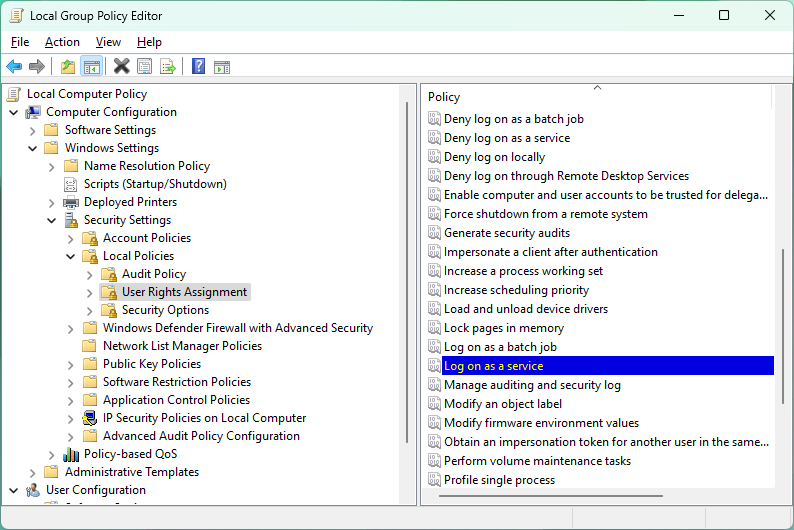
Local Group Policy Editor: The Heartbeat Service User must be configured to have the following 10 user rights. To ensure that these rights are properly set, log in to the Internet Controller Server as a Windows Administrator and open the Local Group Policy Editor (Control Panel - Edit Group Policy) and select from the tree on the left Local Computer Policy - Computer Configuration - Windows Settings - Security Settings - Local Policies - User Rights Assignment
Add Rights for Service User:
Double-click each item ('Log on as service' for example). Then add the Service User to the list of users shown.
- Act as part of the operating system
- Adjust memory quotas for a process
- Allow log on locally
- Create a token object
- Debug programs
- Impersonate a client after authentication
- Log on as a batch job
- Log on as a service
- Obtain an impersonation token for another user in the same session
- Replace a process level token
The DB Precision Heartbeat Monitor requires that the file 'DBPHBM.exe' exist in the same folder as the DB Precision main executable ('pension.exe'). If you do not have this file, contact PensionSoft.Note: You should go through the following steps separately on each Internet Controller server. DBPHBM is not installed on any other installations of DB Precision. To configure DBPHBM, do the following steps:
- Run DB Precision as an Active Directory Administrator: To do this, press the shift key, right-click the DB Precision icon on the Windows desktop, and select 'Run as administrator'.
- Open Heartbeat Monitor Screen: Log in to DB Precision as a DB Precision administrator and then choose Portal - Heartbeat.
- Configuration: Enter all of the information contained on this screen (items described above).
- Start: Press the Start Button and follow all prompts to complete the setup.
- Test: Open the Heartbeat log file (found in the log folder described above) and check for any errors. If there are no errors, test the Internet Portal using a sample portal user and make sure that you are able to log in, be able to open Person Listings on the portal as well as run benefit calculations for participants.
For DB Precision to be able to launch properly, the launching user must be a local administrator. If it is not, please do the following:
- Open Windows Computer Management: Search for Computer Management in Windows search or run 'compmgmt.msc'.
- Open Local Administrators Group: Choose Computer Management (Local) - System Tools - Local Users and Groups - Groups and then on the right side of the screen right-click Administrators and choose Properties from the menu.
- Add User to Administrator Group: Press the Add... button and then choose the ID/name of the launching user.
Beginning with the October 2025 DB Precision release, the way that DBPHBM launches DBP was changed. This new approach 1) required additional system rights be added for the launching user (see Service User Configuration above), 2) changed the way that the user was logged in within the service, and 3) no longer required Microsoft Word Configuration (see Microsoft Word Configuration below).
If you configured DBPHBM prior to the October 2025 release, do the following:
- Open Windows Services: Search for Services in Windows search
- Open DBPHBM Properties: Right-click DB Precision Heartbeat Monitor and choose Properties.
- Update Log on as: On the Log On tab, choose Local System Account. The check box Allow service to interact with desktop should remain unchecked. then press Ok. You will need to restart the service for the change to take effect.
DB Precision must be able to launch Microsoft Word to produce certain output displayed on the Internet portal such as benefit calculation results.
To ensure that the application has the rights to do this, first ensure that the Microsoft Office License for the Heartbeat Service User has been activated by logging in to that account on the Internet Controller server and opening Microsoft Word.
Once this is done, log in to the server as a Windows Administrator and the launch Component Services (System - Component Services in Windows). Find Microsoft Word 97 - 2003 Document by navigating to Console Root\Component Services\Computers\My Computer\DCOM Config (note that you may need to select View - Detail from the menu to see this):
If you do not see "Microsoft Word 97 - 2003 Document" under then name column, then look for "{00020906-0000-0000-C000-000000000046}" under the name column as this can appear instead.
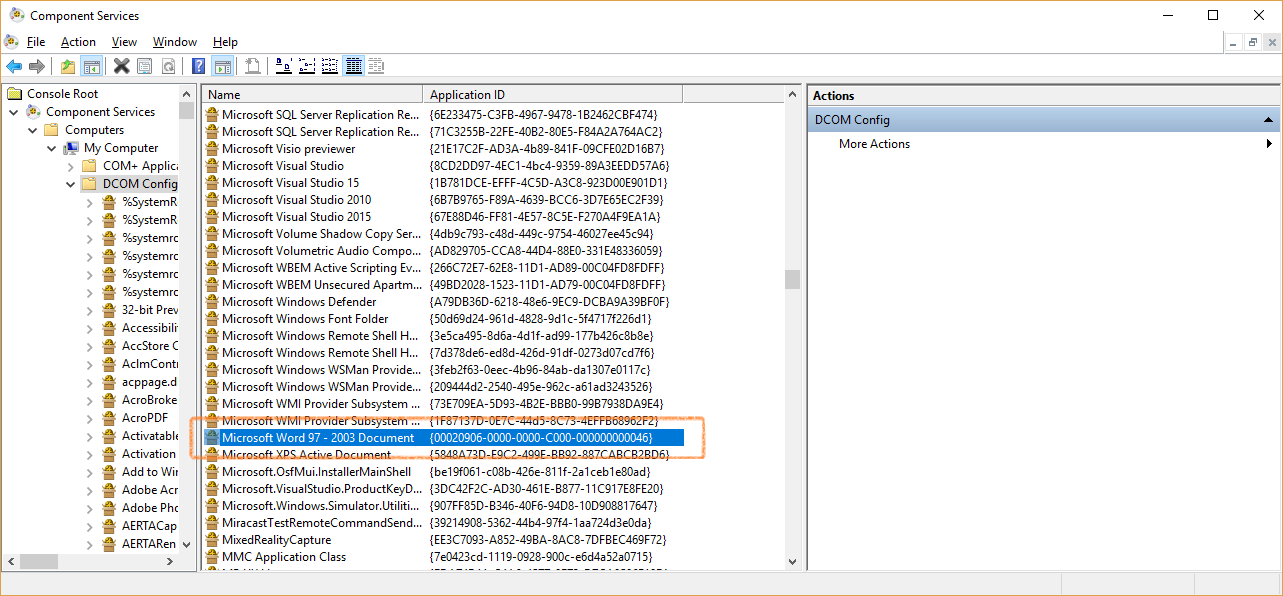
View the properties by right-clicking this Word item and then select the
Security tab. Then select the
Customize radio button for all options on this tab:
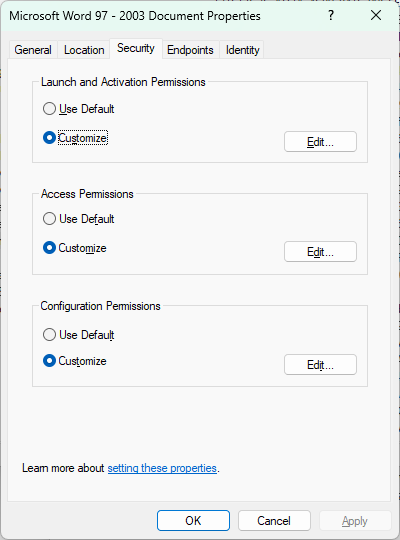
Press the
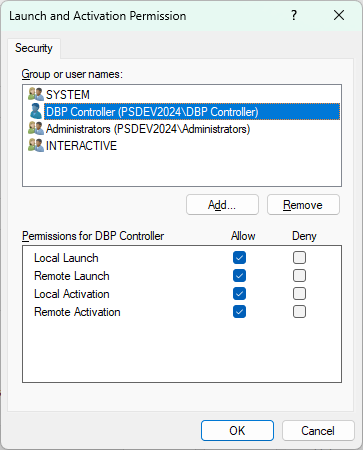
Edit button for each item to open the permissions dialog. If the Heartbeat Service User is not on the list, press the
Add button to add the User. Select the Heartbeat Service User name and make sure that
Allow is checked for all possible permissions in the bottom list:
Select the
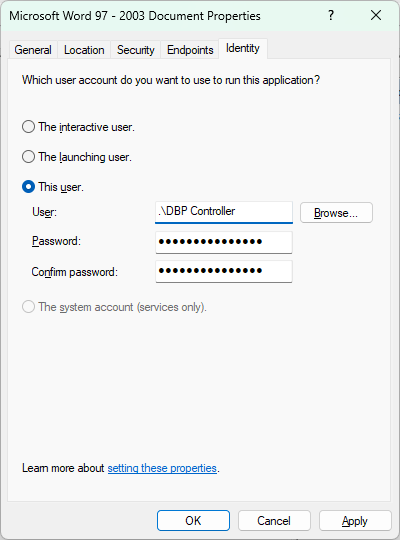
Identity tab and then choose
"This user" under the question "Which user account do you want to use to run this application?". Enter the user name and the password for the Service User.
Anytime that you update DB Precision on this server, you will first need to stop the Heartbeat Monitor. To do this, you will need to open DB Precision with administrator rights ("Run as administrator"), select Portal - Heartbeat from the main DB Precision ribbon, and then press the Stop button.
Complete the DB Precision update process and then restart the Heartbeat Monitor by reopening DB Precision with administrator rights and pressing the Start button on this same screen.
When the password for the Active Directory account used as the Heartbeat Service User changes, update the saved password on each Internet Controller server that uses this account. For configurations that use This account in Windows Services and This user for Microsoft Word in Component Services, complete both updates below so that the Heartbeat Monitor and Microsoft Word can continue to run.
- Update Windows Services: Log in to the Internet Controller server as a Windows Administrator and open Services from Windows search. Right-click DB Precision Heartbeat Monitor and choose Properties. On the Log On tab, under This account, leave the service account user name unchanged and enter the new password in both Password and Confirm password. Press Apply, then OK.
- Update Microsoft Word in Component Services: Open Component Services and navigate to Console Root\Component Services\Computers\My Computer\DCOM Config. Right-click Microsoft Word 97 - 2003 Document and choose Properties. If this name is not listed, look for {00020906-0000-0000-C000-000000000046}. On the Identity tab, under This user, leave the service account user name unchanged and enter the new password in both Password and Confirm password. Press Apply, then OK.
- Restart and test: After saving both passwords, restart DB Precision Heartbeat Monitor in Windows Services (or start it if it is stopped). Check the Heartbeat log for errors and confirm that the Internet Controller heartbeat resumes. Test a portal benefit calculation that produces Microsoft Word output to confirm that Word can open successfully.
